How do I handle add-ons to my service?
Add-ons are extras with their own price that ride along with a service: hot stones, a gloss, a beard trim, an extra 15 minutes. Set them up once, then tap to add them to any appointment.
Set up an add-on
- 1 Open Settings, and under Addons tap Add Addon.
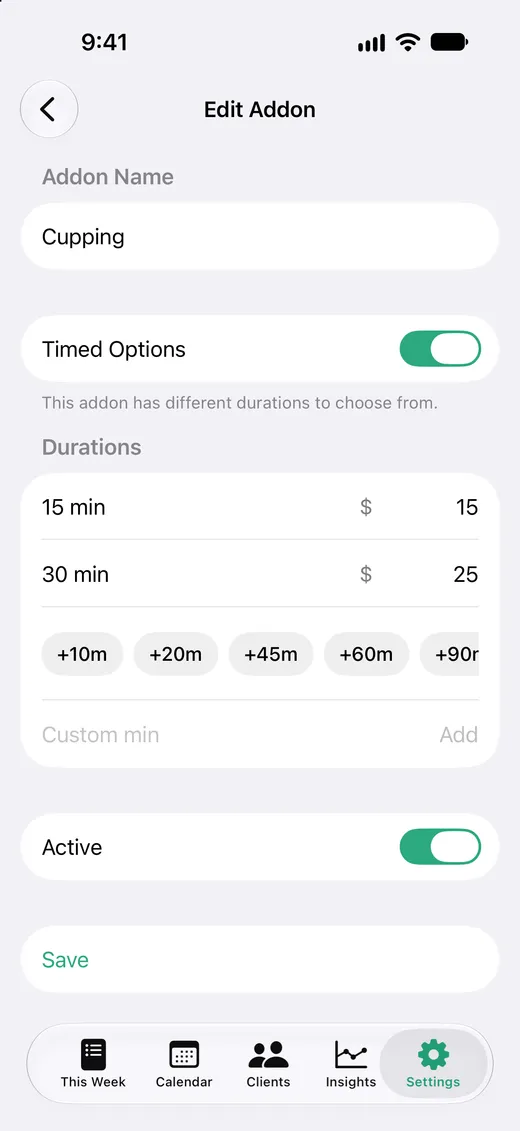
- 2 Name it, like “Hot stones”.
- 3 For an add-on with one price, enter the price.
- 4 For an add-on that comes in different lengths, turn on Timed Options. Add each length it comes in and the price for each.
- 5 Tap Save.
Stopped offering something? Open it and turn off Active. It disappears from booking, but past appointments that included it keep their price.
Add it to an appointment
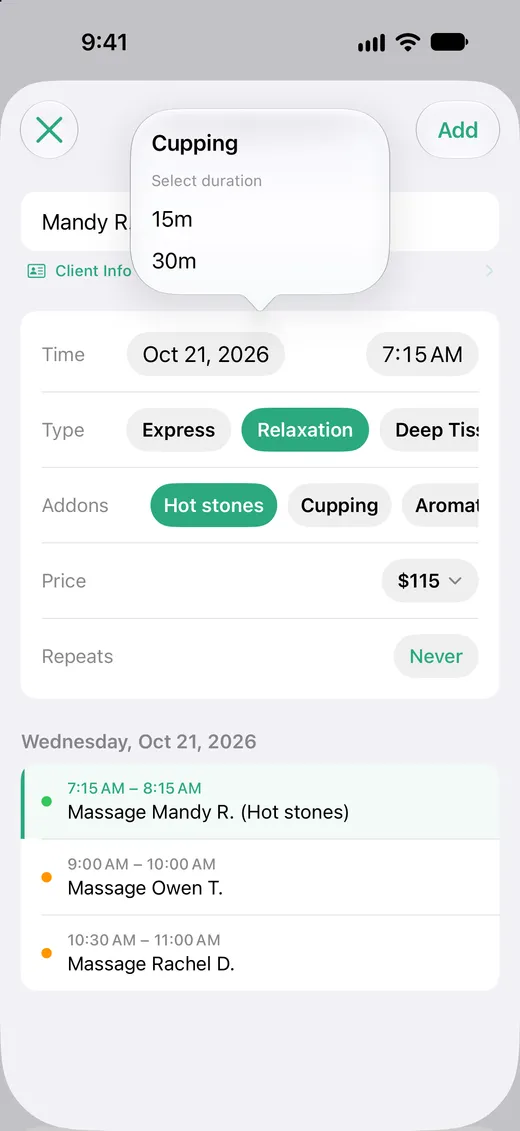
- 1 In a new or existing appointment, find Addons.
- 2 Tap an add-on to include it. Tap it again to take it off.
- 3 For an add-on with timed options, pick the length from the list that appears. Tap Remove Addon there to take it off.
The price updates as you go. Timed add-ons also make the appointment longer by that many minutes, so the extra time is blocked in your calendar.
What you'll see in your calendar
Add-ons are written into the event notes, so the appointment keeps its full price even if it's edited from another device.
Core: 60m
Addons: Hot stones, Cupping-15m
Leave these lines as they are. Anything else you write in the notes is kept.
How it affects your totals
Add-on prices are part of each appointment's total, so they're included in your weekly, monthly, and yearly revenue.
Add-on prices have start dates, just like service prices. Change one in Pricing History and past appointments keep what they were charged. See How do I manage price increases?.