How do I manage price increases or other changes?
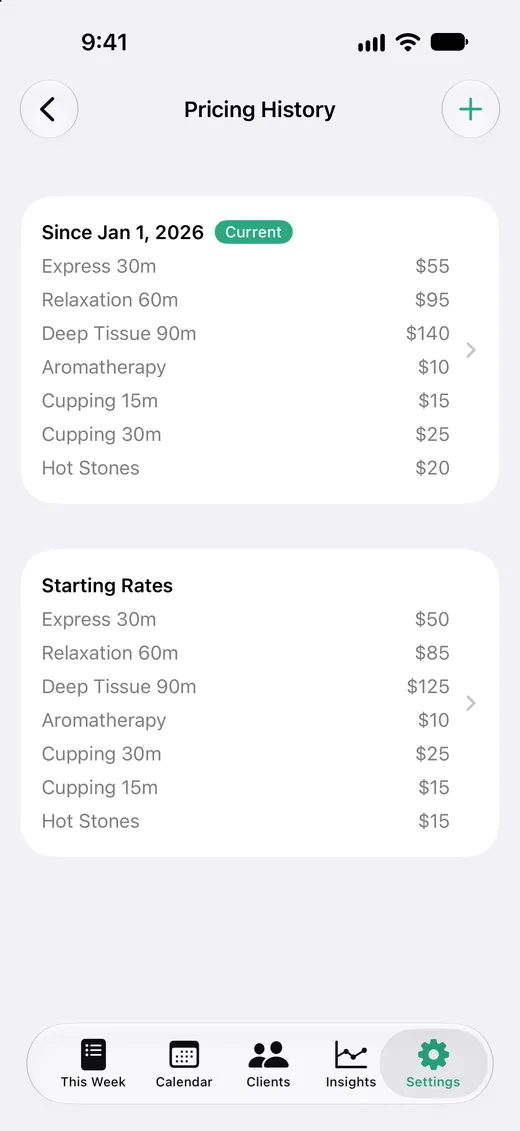
Every price in Solo has a start date. Raise a price and new appointments use it, while past appointments keep the price they were actually charged. Your history and year-over-year numbers stay honest.
Raise a price starting today
- 1 Open Settings and tap the service under Core Services.
- 2 Enter the new price and tap Save.
The new price starts now. Appointments already in the past keep the old one, and appointments coming up use the new one.
If you've booked months ahead, tap Full Sync Source Calendar in Settings afterward so every future appointment picks up the new price right away.
Schedule a price change for a later date
Raising prices on the first of the year? Set it up now and forget about it.
- 1 Open Settings and tap Pricing History.
- 2 Tap + in the top corner.
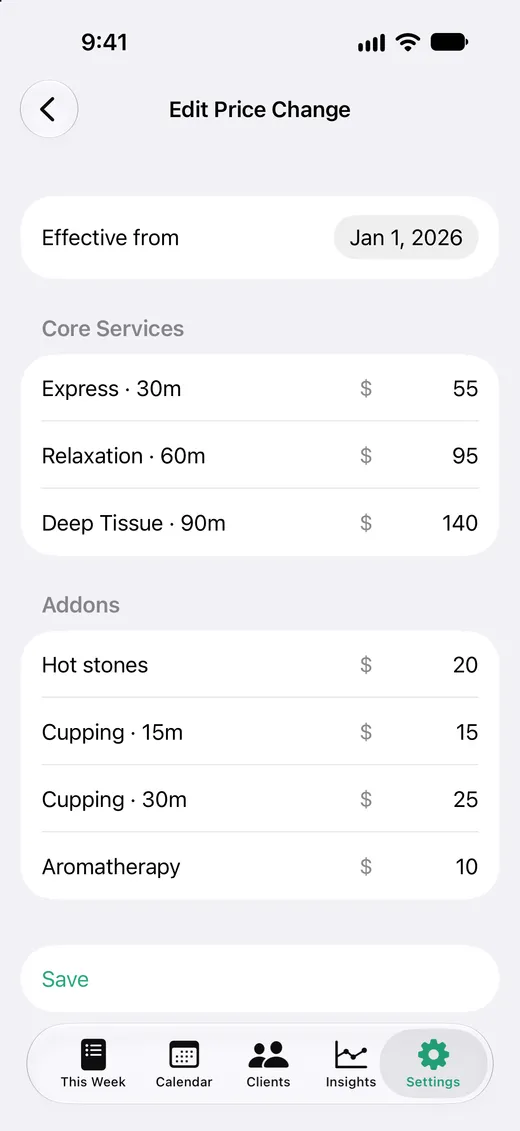
- 3 Set Effective from to the day the new prices start.
- 4 Enter the new price for each service and add-on. Leave the ones that aren't changing as they are.
- 5 Tap Save.
Fix a price you entered wrong
- 1 Open Settings and tap Pricing History.
- 2 Tap the change you want to fix. You can change its date or any of its prices.
- 3 Tap Save, then tap Full Sync Source Calendar so past appointments are priced again.
To undo a price change completely, swipe left on it in Pricing History. Leave the first entry, Starting Rates, in place: it prices everything before your first change.
Keep a loyal client at their old price
Open the client's next appointment, tap the price, and enter their old rate as a custom amount. If the appointment repeats, choose This and Future Events when you save so every visit in the series keeps that price.
A custom price always wins over your standard rates, so it stays put the next time you raise prices too.
How it affects your totals
Revenue in This Week, Calendar, and Insights uses the price that was in effect on each appointment's date. A price increase in March doesn't inflate what you earned in January, so comparing this year with last year shows real growth.