How do I give someone a discount?
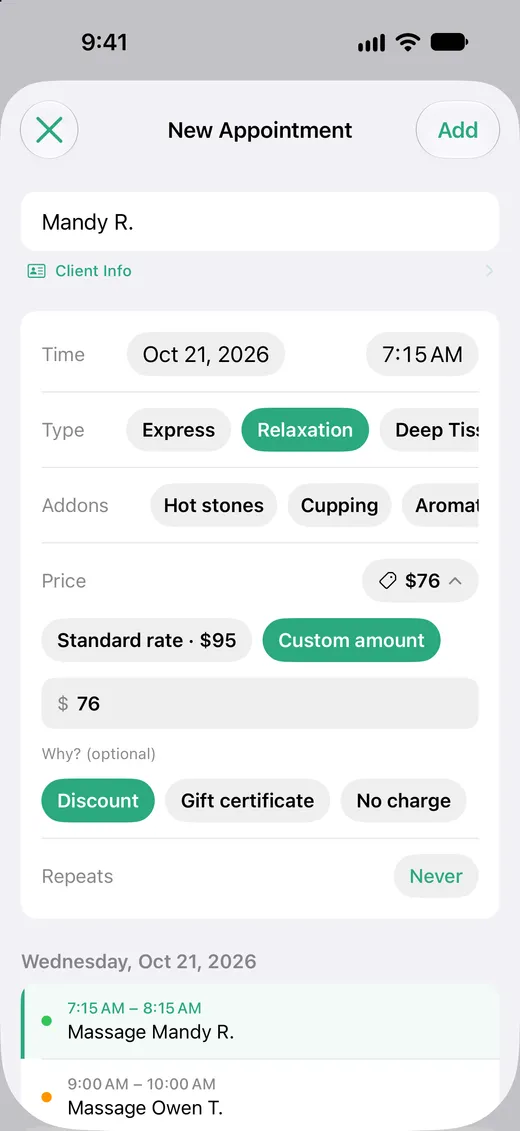
Any appointment can have its own price. Open it, tap the price, enter what you're charging, and mark it as a discount. Your revenue counts what you actually charged.
Discount one appointment
- 1 Open the appointment, or start a new one.
- 2 Tap the price next to Price.
- 3 Tap Custom amount and enter what you're charging.
- 4 Under Why?, tap Discount.
- 5 Tap Save, or Add for a new appointment.
Solo takes an amount, not a percentage. For 20% off a $95 massage, enter $76.
Discount a standing appointment
If the appointment repeats, Solo asks how far the change goes when you save. Choose This Event Only for a one-time discount, or This and Future Events to give the client that price on every visit from now on.
Spot discounted visits
Discounted appointments show a small tag next to the price in This Week and in the client's history, so you can tell at a glance who's getting a special rate.
To go back to your normal price, open the appointment, tap the price, and tap Standard rate.
What you'll see in your calendar
The custom price is written into the event notes, so it survives syncing and shows up wherever you view the event.
Core: 60m
Price: $76 (Discount)
Leave these lines as they are. Anything else you write in the notes is kept.
How it affects your totals
Revenue counts the discounted amount, not your standard rate. This Week, Calendar, Insights, and the client's total all show what you actually charged.
A custom price always wins over your standard rates, so raising your prices later won't undo a discount you've given someone.