How do I handle repeat clients?
Solo knows a client by their name. Book someone under the same name and every visit lands on one client page, with their history, notes, and how often they come back. Standing appointments are one setting away.
Book a returning client
- 1 Tap the + button on any tab to start a new appointment.
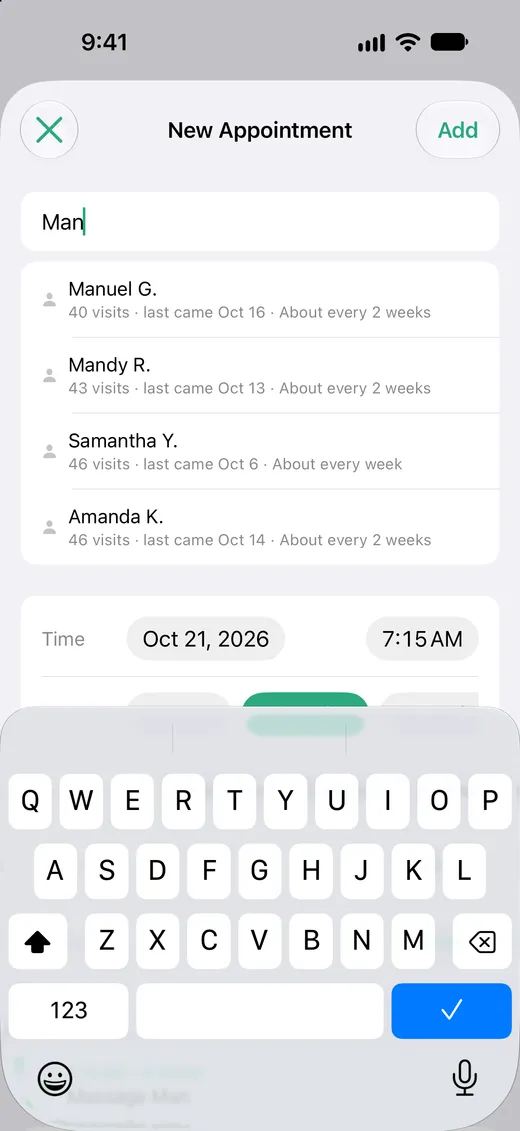
- 2 Start typing the client's name. Solo suggests past clients as you type, with the people you've seen most recently first.
- 3 Tap the right name, then choose the service, time, and price as usual.
- 4 Tap Add. The visit is added to that client's history.
Upper and lower case don't matter, but spelling does: “Mandy” and “Mandi” are two different clients. If you see two people with the same first name, add a last name or initial, like “Mandy R.” and “Mandy K.”
Set up a standing appointment
- 1 In the new appointment, find Repeats.
- 2 Choose Weekly, Every 2 Weeks, or Monthly.
- 3 Tap Add. Solo creates a repeating event in your calendar, so every future visit is already on the books.
When you change or delete one visit in a repeating series, Solo asks whether you mean This Event Only or This and Future Events. Pick the first to move a single visit. Pick the second when the client changes their regular day or time, or stops coming.
See everything about a client
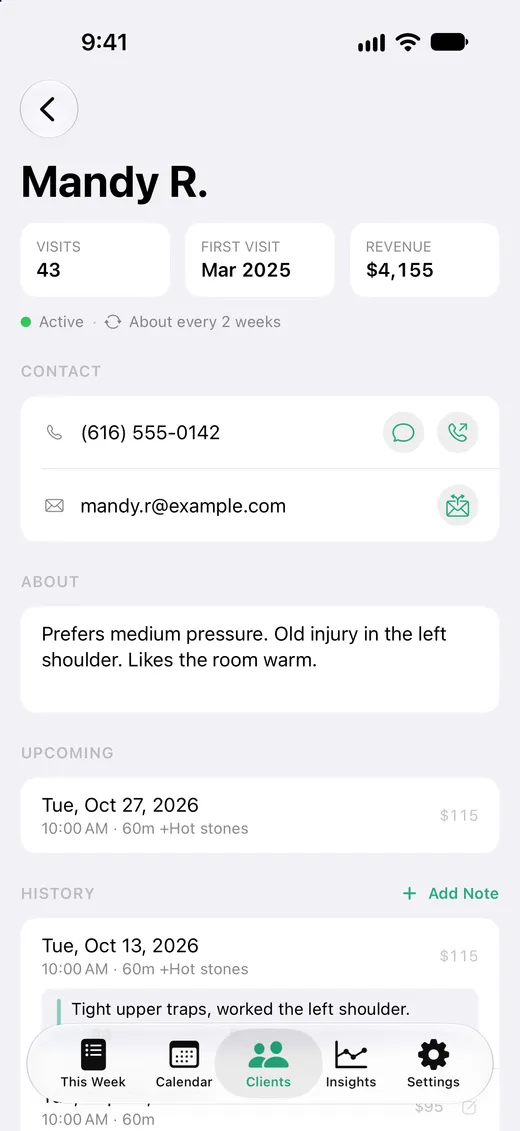
Open the Clients tab and tap a name. The client page shows how many times they've visited, when they first came, and how much they've spent with you. It also shows their next appointment and every past visit, newest first.
Tap a past visit to add a session note, or add contact details and a few lines about them under About. That information stays in Solo on your iPhone. It's never written into your calendar.
Once a client has visited a few times, the client list shows how often they come back, like “About every 3 weeks”. It's a quick way to spot regulars who are overdue.
Active and inactive clients
A client is active if they've visited, or are booked, in the last 12 months. The Clients tab shows active clients first, and inactive ones are one tap away. The free plan includes 3 active clients, so a client who hasn't been back in a year stops counting against it.
What you'll see in your calendar
A standing appointment is an ordinary repeating event, so it shows up in the Calendar app, on your Mac, and on any calendar you share with family.
Core: 60m
Leave these lines as they are. Anything else you write in the notes is kept.
How it affects your totals
Each visit counts once, on the day it happens. Booked visits are included in the week's expected revenue and in the cash flow forecast in Insights, so a full book of standing clients shows up as money you can count on.
If you spot a misspelled name, open the appointment and fix it. The visit moves to the right client, and the misspelled client disappears once it has no appointments left. Clients you've added notes or contact details to are always kept.